Receive the work
The .closed file or the hand-in PDF, which carries the signed document inside, by email or through the school platform.

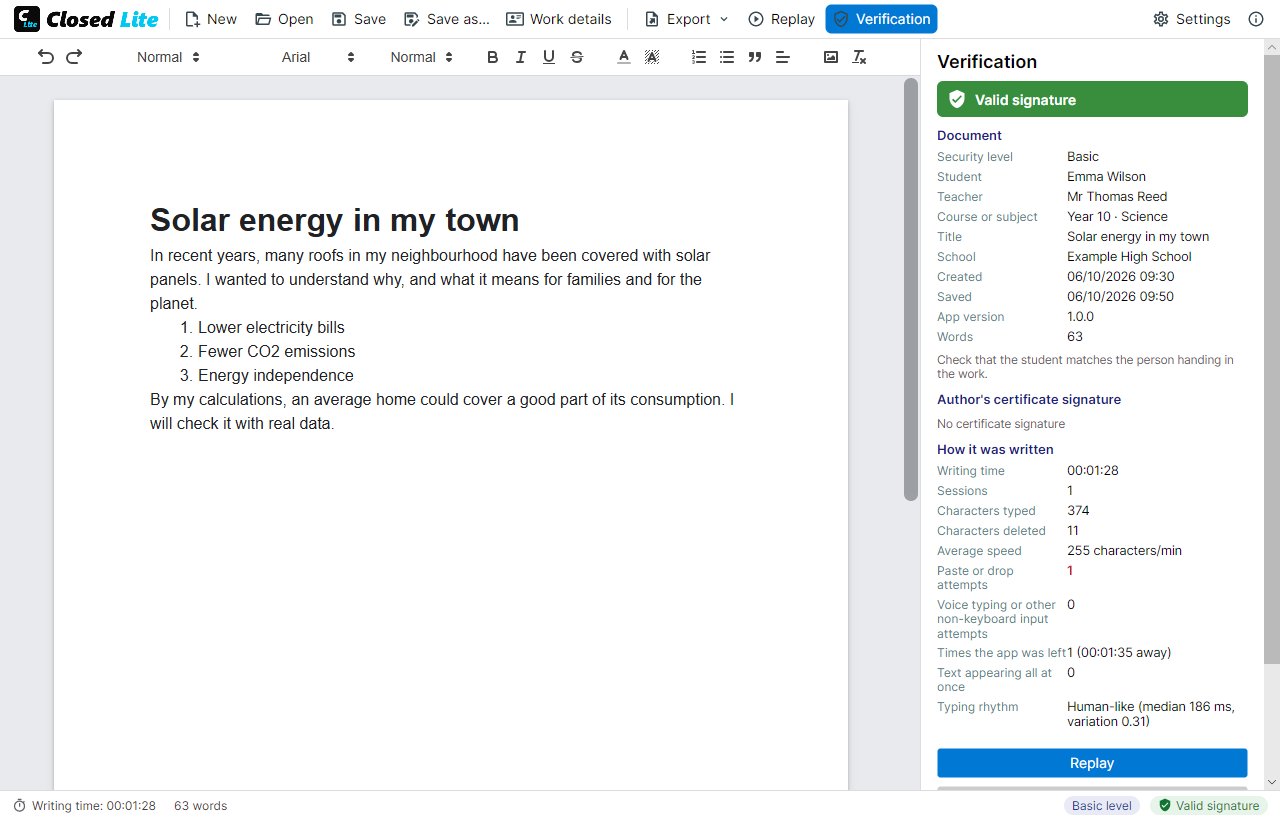
Open the .closed file or the PDF your students hand in: Closed Lite tells you whether the signature is valid, how long it took to write, whether anyone tried to paste or dictate, and lets you replay the writing.
The .closed file or the hand-in PDF, which carries the signed document inside, by email or through the school platform.
With Closed Lite. It checks the signature and the record before showing it, and opens it read-only.
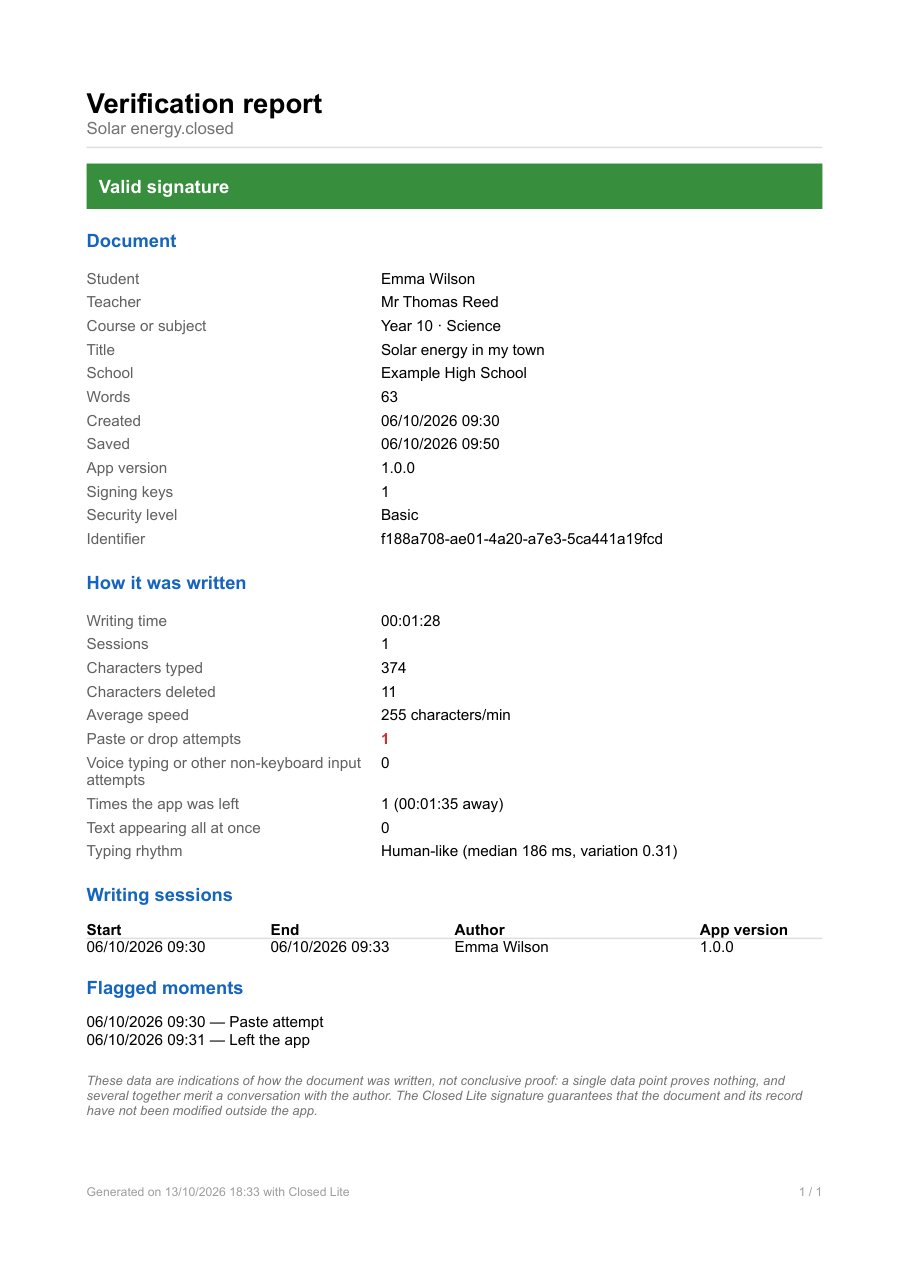
Signature status, author, time, sessions, deleted characters, blocked attempts and exits from the program.
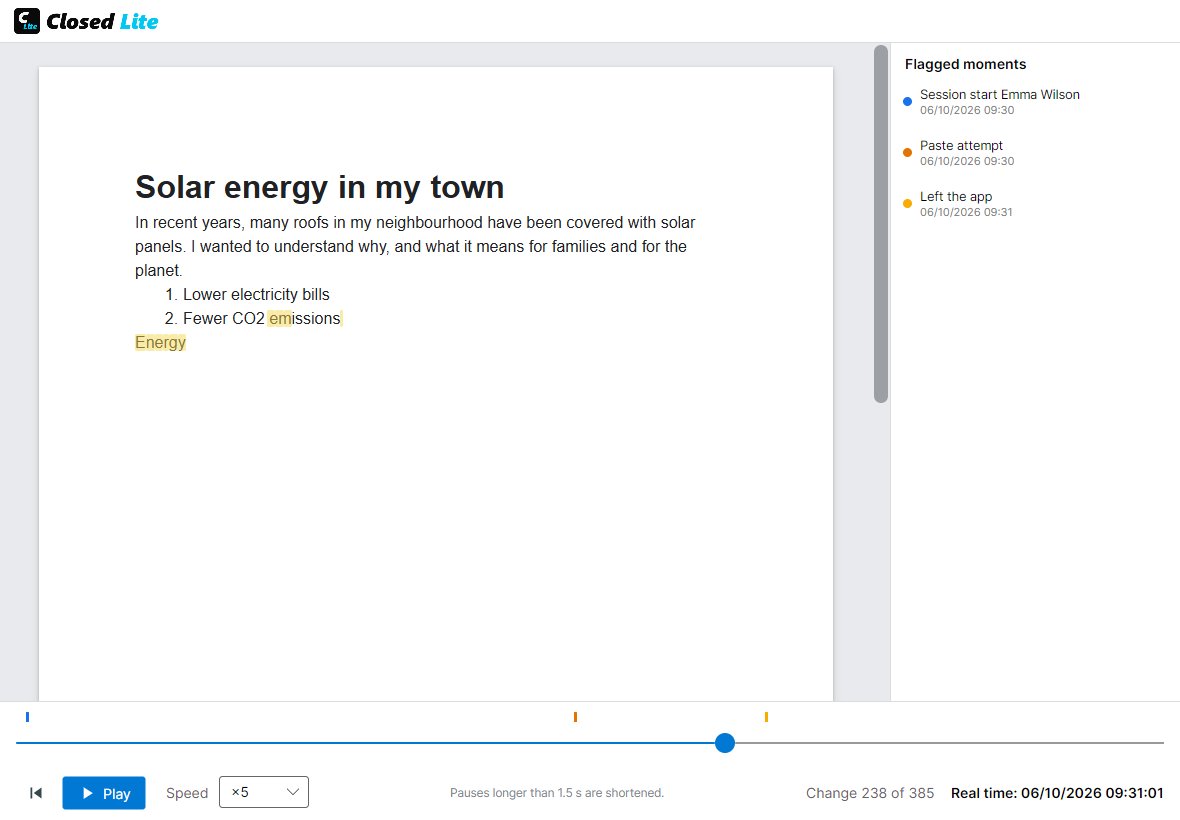
Watch the writing at ×25 or ×50 and stop at the flagged moments.
The document and its record have not been changed outside Closed Lite, and the record reproduces the text exactly.
The signature does not match or the text does not come from what was written in Closed Lite.
The text grows in bursts, with pauses to think, deleted words and rewritten sentences.
Text that grows without pauses or corrections at a steady pace, as if copied from another screen, especially after an exit from the program.
Orange markers show attempts to paste, drag or dictate. Look at what was written right after.
Blue markers show the start of each session, with the name set at that moment.
Many platforms (Moodle, Classroom, Teams) only accept PDF or Word. That is why, when saving, the student chooses between the .closed file and a PDF that opens in any viewer and carries the signed .closed document inside, as an attachment. Its first page is a cover with the student's data.
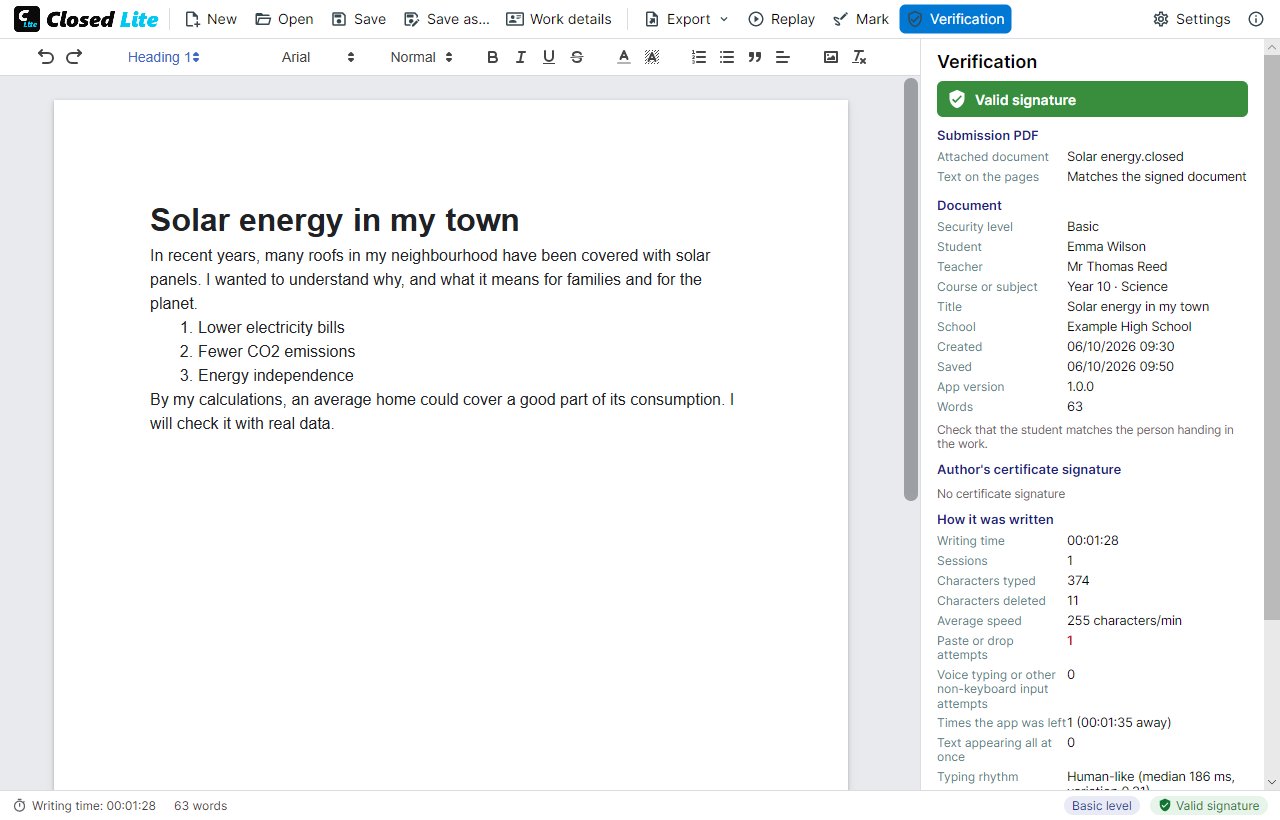
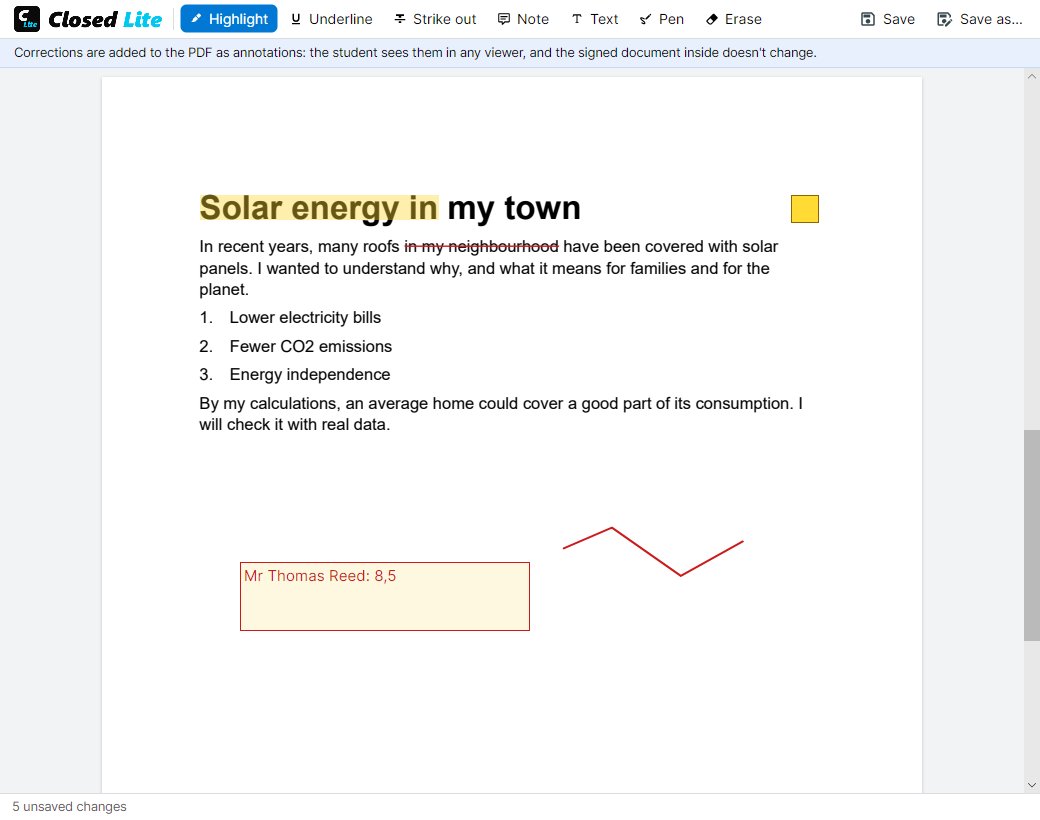
With «Mark», highlight, underline or strike through, add notes, text such as the final grade, or draw with the pencil. The corrections are saved in the PDF as annotations that the student sees in any viewer.
A one-page PDF with the signature status, the document data, how it was written, the sessions and the flagged moments. Export it from the verification panel and attach it to the marking or the file.